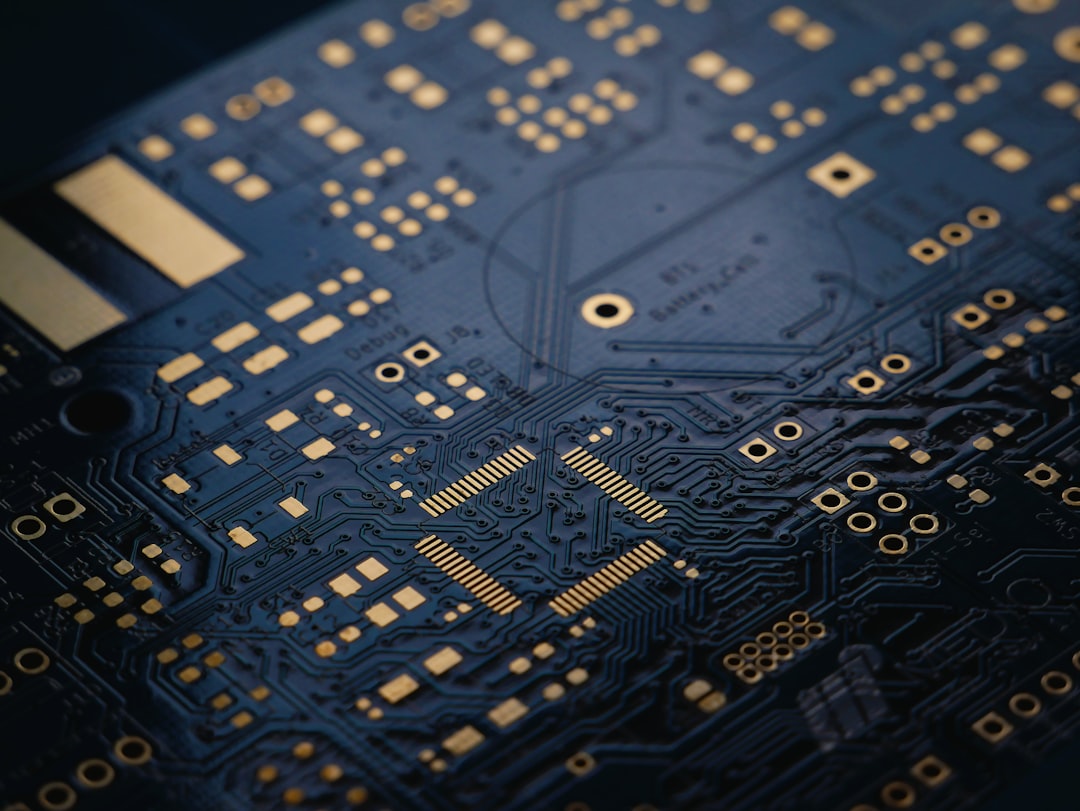
Photo by Vishnu Mohanan on Unsplash
The $2,000 Problem Nobody Talks About
You just dropped two grand on a gaming laptop with the latest RTX 4090 and a 13th-gen Intel processor. You fire up Cyberpunk 2077, crank the settings to ultra, and suddenly your frame rate tanks from 120 FPS to 45 FPS within thirty seconds. What happened? Welcome to thermal throttling—the invisible performance killer hiding inside your machine.
This isn't a manufacturing defect. It's not a software bug. It's actually your computer deliberately crippling itself to avoid melting its own components. And it's happening to millions of gamers right now without them realizing what's going on.
How Your Laptop Decides to Sabotage Itself
Modern processors generate serious heat. An RTX 4090 can consume 450 watts of power. That's roughly equivalent to a high-powered space heater running flat out, except it's all concentrated in a chip the size of a postage stamp. When your CPU or GPU reaches approximately 80-85°C, it enters a protective mode where it deliberately reduces its clock speed—sometimes by half or more.
The engineering behind this is sound. Push silicon too hard for too long, and you're looking at permanent degradation of the transistors themselves. Your device will literally stop working. So manufacturers implemented thermal throttling as insurance. It's like your body sweating when you overheat—a necessary defense mechanism.
But here's where it gets frustrating: laptop manufacturers cram all that power into increasingly thinner chassis. A 2024 gaming laptop is often less than an inch thick. There's simply not enough physical space for adequate cooling solutions. You're getting a supercomputer's power in a form factor designed for portability, and the thermal paste holding those two design goals together is basically struggling for oxygen.
The Real Culprits Behind Your Overheating Machine
Dust buildup is the obvious villain, but it's just the opening act. The actual problem starts with airflow design. Most gaming laptops have intake vents on the bottom and sides. If you're gaming on a bed, a blanket, or even a wooden desk, you're completely blocking these vents. The air has nowhere to go, so hot air just cycles back into the system. I discovered this the hard way when my gaming sessions mysteriously got 20°C hotter when I switched from my desk to the couch.
Then there's thermal paste degradation. The gooey substance between your GPU/CPU and the heatsink dries out and becomes less effective over time. After about two years of heavy gaming, thermal paste that started out with 7-8 W/mK conductivity can degrade to 4-5 W/mK. That's roughly a 40% reduction in heat transfer efficiency.
The third culprit? Inadequate heatsink design and contact pressure. Some budget gaming laptops use heatsinks that don't make full contact with the entire chip surface. There are literally microscopic gaps where heat just sits trapped. High-end models like ASUS ROG and MSI use vapor chamber technology to spread heat more evenly, but that costs extra money that manufacturers would rather not spend.
Fixes That Actually Work (And Which Ones Are Garbage)
Let's start with what doesn't work: those adhesive cooling pads you see on Amazon for $15. They're basically placebos with sticker backing. Thermal pads have terrible conductivity compared to actual heat transfer solutions.
What does work? First, get a laptop cooling pad with actual fans. Look for models with 1,000+ RPM fans that provide genuine airflow underneath your laptop. This alone can drop temperatures by 10-15°C because you're actually forcing air through the vents instead of letting heat pool. I use the HAVIT HV-F2056, and it's reduced my RTX 4090 temperatures from 89°C under load to 75°C.
Second, repaste your laptop. If you're comfortable opening it up (check your warranty first), replacing the thermal paste with high-quality stuff like Thermal Grizzly Kryonaut can give you 8-12°C of improvement. This is a weekend project that requires a screwdriver, some isopropyl alcohol, and honestly, not much else.
Third, optimize your power settings. Your laptop doesn't always need to run at maximum performance. Setting a power limit on your GPU—reducing it to 90% power in NVIDIA Control Panel—gives you maybe 5-8% performance loss but can cut temperatures by 12-15°C. You won't even notice the difference in games, but your fans will finally stop screaming.
Fourth, and this sounds stupid but it works: elevate your laptop. Get a laptop stand that angles your device and creates space underneath for air circulation. Propping up a gaming laptop with just a few books underneath can improve thermals by 5°C because hot air can actually escape.
Why Manufacturers Keep Getting Away With This
Gaming laptop reviews test under ideal conditions—perfectly cool rooms, pristine thermal paste, unobstructed vents. Real-world gaming happens in dorm rooms, bedrooms with pets, and yes, sometimes on beds. The manufacturers know this. They also know that most customers won't realize their performance loss is thermally induced. They'll just assume their expensive machine is slow, and they'll buy a new one in three years.
There's also the simple fact that fixing thermal issues costs money. Better heatsinks, larger chassis, more sophisticated cooling solutions—these all cut into profit margins. So instead, manufacturers push the burden onto consumers. It's why you need to be proactive about cooling rather than reactive.
If you want the full technical breakdown of how this impacts your specific hardware, check out why your smartphone's AI chip matters more than you think—the same thermal principles apply to all mobile computing devices.
The Bottom Line
Your gaming laptop isn't defective. It's just working exactly as designed—protecting itself by reducing performance when temperatures spike. But that protection shouldn't come at the cost of your gaming experience. Spend $40 on a cooling pad, elevate your machine, keep your vents clear, and you'll get the performance you actually paid for. It's that simple.
Comments (0)
No comments yet. Be the first to share your thoughts!
Sign in to join the conversation.